Train Smart. Work Smarter.

April 22, 2026 admin
Configuring Code Style Rules
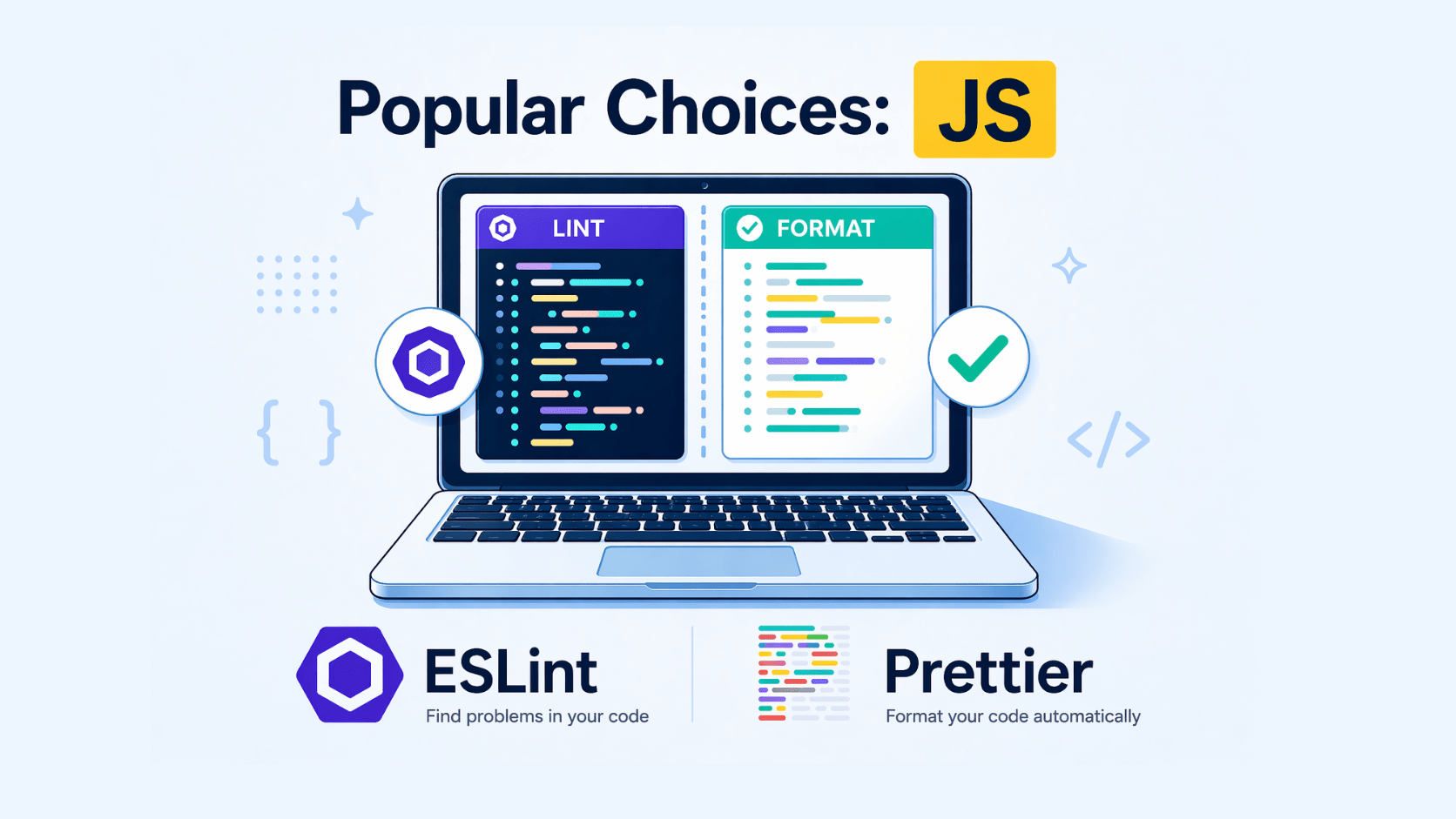
Popular Choices:
- Prettier: This is a widely adopted code formatter known for its extensive language support and automatic formatting capabilities. You can configure its behavior through a
.prettierrcfile in your project root. Here’s an example:
{
  "semi": false,  // Disallow semicolons
  "trailingComma": "all",  // Add trailing commas
  "printWidth": 100  // Maximum line length
}
- ESLint: Primarily a linter for JavaScript, it can also handle style checking. Use plugins like
eslint-config-prettierto combine ESLint’s linting and Prettier’s style enforcement.
Example with ESLint and Prettier:
- Install ESLint and the
eslint-config-prettierplugin globally:
npm install -g eslint eslint-config-prettier
Create a .eslintrc.json file in your project root:
{
  "extends": ["eslint:recommended", "prettier"],
  "plugins": ["prettier"],
  "rules": {
    "prettier/prettier": ["error", { "endOfLine": "auto" }] // Enforce Prettier rules
  }
}
Run ESLint on your JavaScript files:
eslint <file_name>.js
Remember to integrate these tools with your IDE/editor for automatic formatting on save or code changes.
Choosing the Right Tool:
- Prettier: If you primarily want automatic formatting with customizable options, Prettier is a great standalone choice.
- ESLint: If you need both linting and style checking, ESLint with the
eslint-config-prettierplugin is a powerful combination.
